Setup
Installing dependencies
Sandalphon depends on other Judgels applications to run correctly. Here is the dependency diagram.
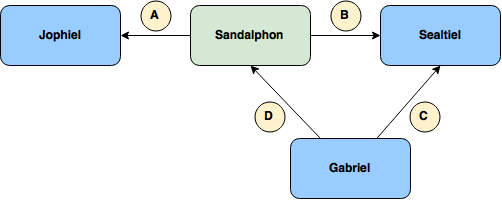
An arrow pointing from A to B means that A depends on B. The dependencies between applications are described as follows.
- Sandalphon connects to Jophiel for user authentication and authorization.
- Sandalphon connects to Sealtiel for sending grading requests and polling grading responses.
- Gabriel connects to Sealtiel for polling grading requests and sending grading responses.
- Gabriel connects to Sandalphon for fetching test cases.
Installing Sandalphon
First, follow the main Judgels setup instructions if you haven’t. This means that you should have installed Sandalphon by running
judgels pull sandalphon
and should have modified the common configuration keys in conf/application.conf and conf/db.conf.
Configuring Sandalphon
First, let’s configure the dependencies so that they can work with Sandalphon. During the configuration, we will set some configuration keys in Sandalphon’s conf/application.conf.
- Add Sandalphon as a client in Jophiel. Then, assign the client JID and secret values to Sandalphon’s jophiel.clientJid and jophiel.clientSecret. Assign jophiel.baseUrl to Jophiel’s base URL.
- Add Sandalphon as a client in Sealtiel. Then, assign the client JID and secret values to Sandalphon’s sealtiel.clientJid and sealtiel.clientSecret. Assign sealtiel.baseUrl to Sealtiel’s base URL.
- Add Gabriel as a client in Sealtiel. Then, assign the client JID and secret values to Gabriel‘s sealtiel.clientJid and sealtiel.clientSecret. Assign Gabriel‘s sealtiel.baseUrl to Sealtiel’s base URL. Finally, assign the client JID to Sandalphon‘s sealtiel.gabrielClientJid.
- Add acquaintances between Sandalphon and Gabriel, vice-versa, in Sealtiel.
Running Sandalphon
Adding initial admin
Sandalphon has been successfully installed and configured. Now, we need to have a user with admin role.
- Find your user JID in Jophiel.
- Set the roles column to user,admin in the corresponding row (that contains your user JID) in the sandalphon_user table.
- Re-log in to Sandalphon. Verify that you can view the Clients and Graders menu on the left.